
A Professional Music Editor UI with Inpainting and Revision History
What it does
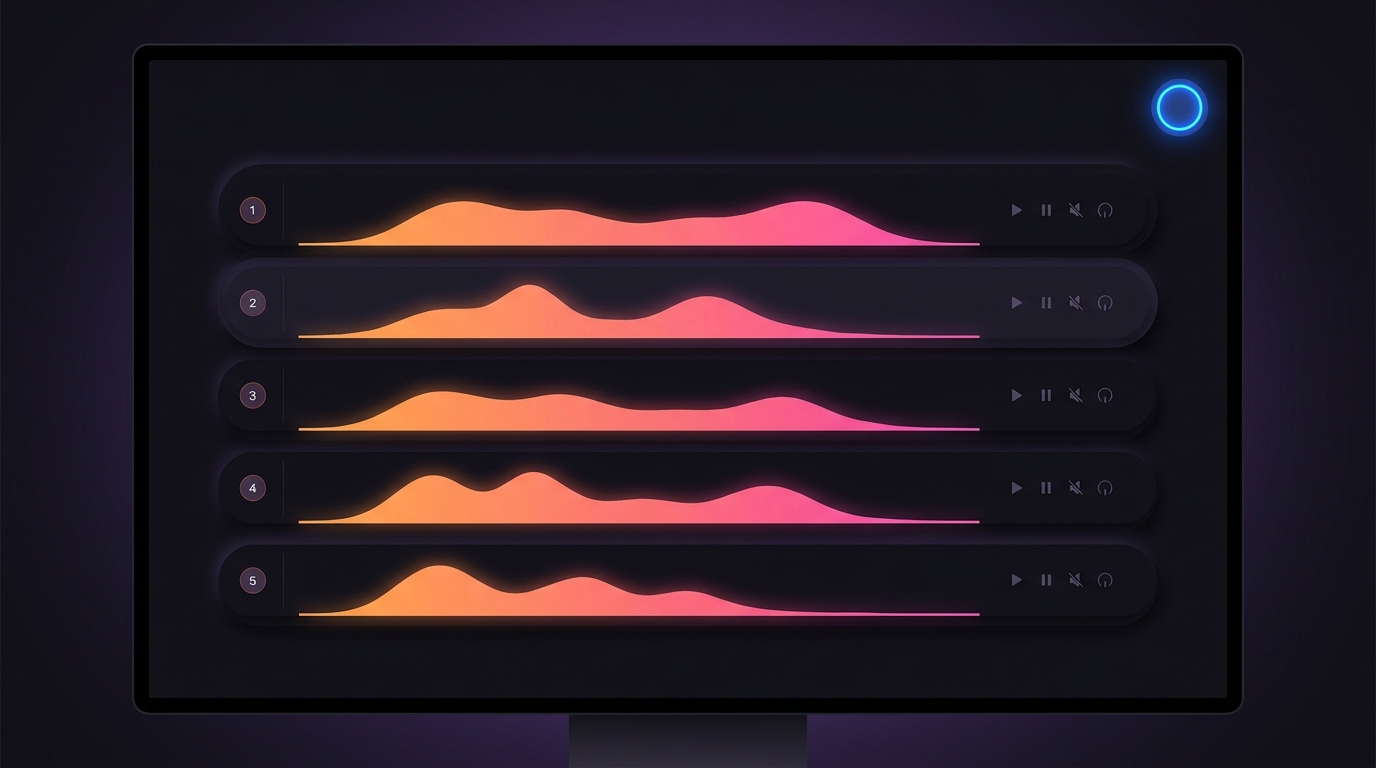
Five separate songs — Neon Tide, Paper Lanterns, Iron Bloom, Midnight Atlas, Glass Harbor — each in its own tab with a full waveform player. They’re standalone tracks, not parts of one song. You can regenerate any song from scratch, or surgically edit a region by dragging on the timeline and inpainting just that slice. Every edit is saved as a numbered revision so you can undo or jump back to any earlier version at any time.

Product Owner
PO
Make it a professional music editor — a tab per song, a timeline I can drag to select a region, inpainting to replace a slice or add vocals, undo, revision history, and parallel regen for all songs at once.

Full-Stack Engineer
Cody
gpt-5.1-codex
Done. Five song tabs, each with a waveform player, an editable prompt, a drag-to-select inpaint timeline, Replace section / Add vocals toggle, revision selector, and Undo. All five songs regenerate in parallel — each with its own live progress indicator.
How to use it
Regenerate a song
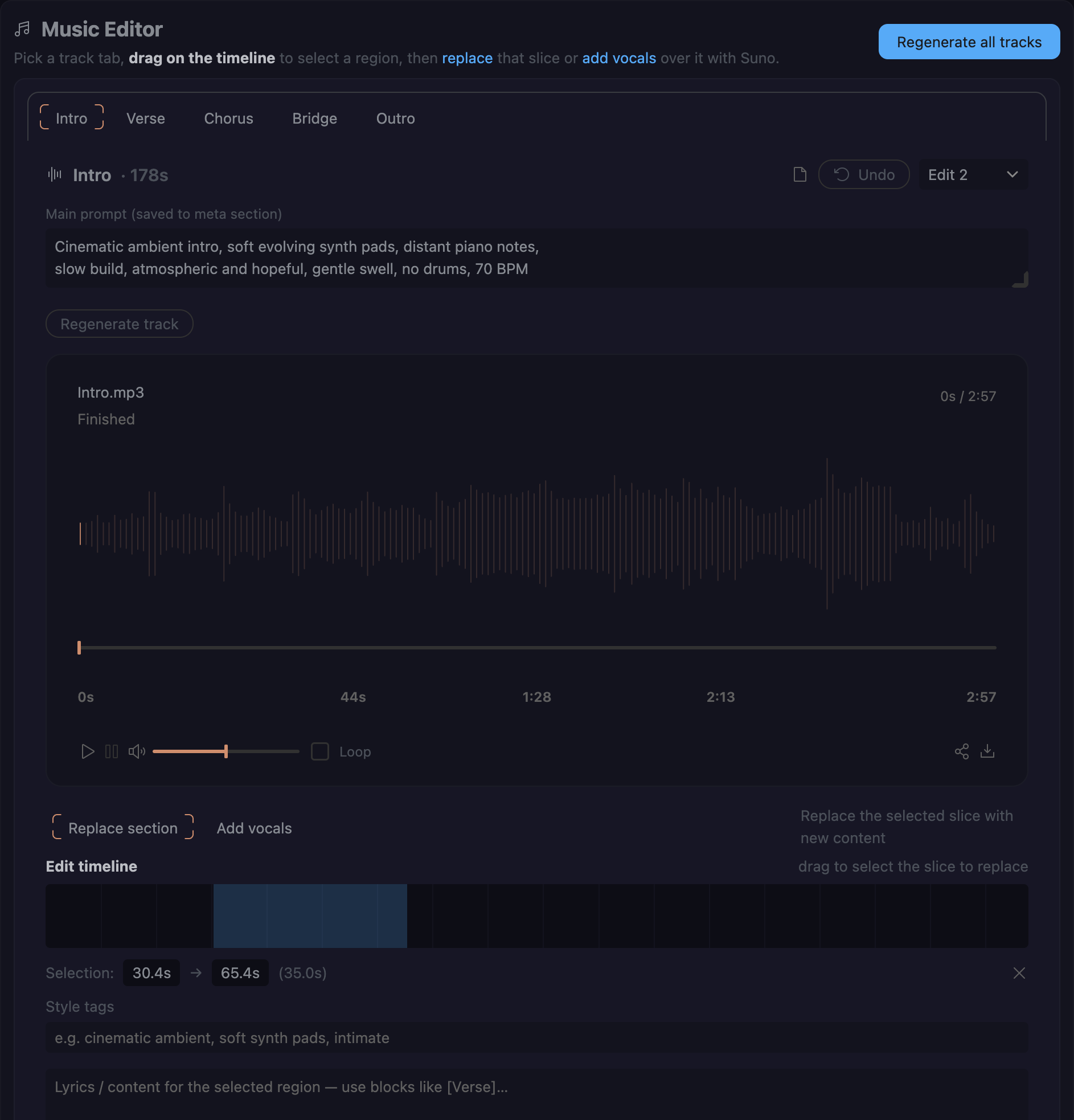
Each tab shows that song’s main prompt at the top — edit it to change the sound, then click Regenerate song. A progress indicator appears inline next to the button. All edit controls lock while generation runs and unlock automatically when the new file is ready.
Edit a region — Replace section
Switch to Replace section mode, then drag on the Edit timeline to highlight the seconds you want to change. Write new lyrics or a description for that slice and click Replace selection. Suno regenerates only the selected segment; everything outside it stays untouched.
Edit a region — Add vocals
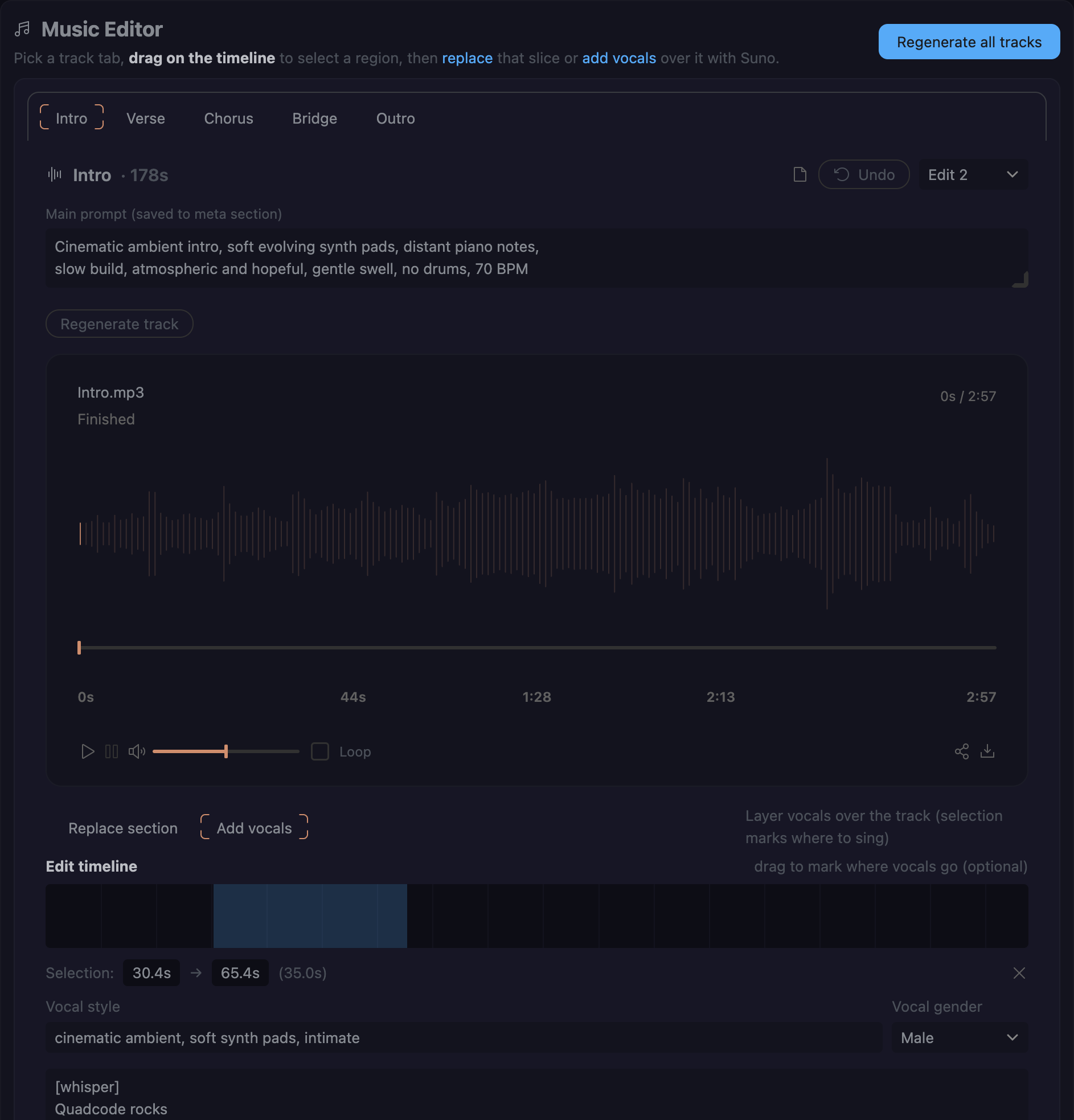
Switch to Add vocals mode. No range selection needed — Suno layers the vocals over the whole song. Pick a vocal style, set the gender, write your lyrics (e.g. [whisper] Quadcode rocks), and click Add vocals.
Revision history
Every successful edit is saved as a numbered file on disk — intro_v1.mp3, intro_v2.mp3, and so on. The revision selector in the song header lets you jump to any version instantly. Undo steps back one revision. Both are instant — no re-generation, just a file swap and a player refresh.
Revisions survive page reloads. If you clear the browser cache the editor probes the project folder for existing _vN.mp3 files and restores the selector automatically.
Regenerate all songs in parallel
Click Regenerate all songs in the header. All five songs regenerate concurrently — each with its own progress indicator — and finish in roughly the time of one. This is the same Promise.all pattern that fans out parallel subagents when you need AI work done across multiple sections at once.
Build your own — the dynamic-interface skill
This whole editor is a single HTML page that lives inside the IDE and reads/writes real project files. It was built with the Create Dynamic Project UI skill — the same skill behind the character-to-video wizard. You don’t write a backend, wire up audio hosting, or build a state store. You describe the editor you want and the skill produces a live page over your music meta sections.
What to ask for
Keep the request about the workflow, not the code. A good prompt names the layout, the edit actions, and the must-have UX guarantees:
build a professional music editor over my songs — a tab per song with a waveform player, a timeline I can drag to select a region, two edit modes (replace the selected slice / add vocals over the whole song), an editable main prompt with a Regenerate button, a revision history with undo, and a Regenerate-all button that runs every song in parallel.
That single sentence is enough. The important parts to spell out:
- The unit — “a tab per song” tells it to map one tab to one
file/soundmeta section. - The edit gesture — “drag on a timeline to select a region” is what turns a plain player into an inpaint editor.
- The modes — “replace the slice” vs “add vocals over the whole song” map to the two Suno edit modes.
- The safety net — “revision history with undo” makes every edit non-destructive.
- The flex — “regenerate all in parallel” is the one line that proves the interface can fan out concurrent AI work.
What you get back
A single themed page with, per song:
- a waveform player with scrubber, volume, and loop
- an editable main prompt that saves straight back to that song’s meta section
- a Regenerate song button with a live progress indicator next to it
- a drag-to-select timeline with a Replace section / Add vocals toggle
- a revision selector + Undo, with edits saved as
_v1 / _v2 / _v3 …files - a header Regenerate all songs button that runs all five concurrently
Sample edits
Three revisions of one song — Neon Tide — straight from the editor: start from the original, layer a whispered vocal, then surgically replace one section.
Original — the generated cinematic-ambient bed, no vocals:
Add vocals — a whispered “Quadcode rocks” layered over the whole song (Add vocals mode, male, instrumental bed untouched):
Replace section — one dragged slice regenerated in place; everything outside the selection is identical to the take above:
Each of these is a real _vN.mp3 revision on disk — the same files the Undo button and the revision selector swap between, instantly, with no re-generation.